Metabase
Metabase is a BI tool available in both open source and enterprise versions; you can run it locally (via Docker), self-host it, or use one of the available Metabase Cloud versions.
In this guide, we'll use the Open Source Docker version (v0.56.6) as a reference, but aside from setup, the final configurations remain replicable across all its versions.
Running Metabase on Docker | Metabase Documentation
Make sure you have Docker installed and running on your computer.
Open the terminal and launch the service locally by typing:
docker pull metabase/metabase:latest
docker run -p 3000:3000 metabase metabase/metabase
This will download the latest version of the container on your machine and launch a local server.
Compared to the official guide, we removed -d, so you can terminate server
execution with a simple ctrl+c in the terminal window. Additionally, we
haven't configured any volume: all configurations will be lost when you
terminate the Docker container. The official guide provides more details on
how to properly configure the service and persist data to disk or to a remote
Database server.
Once service initialization is complete, you can access the Metabase server from your browser at http://127.0.0.1:3000.
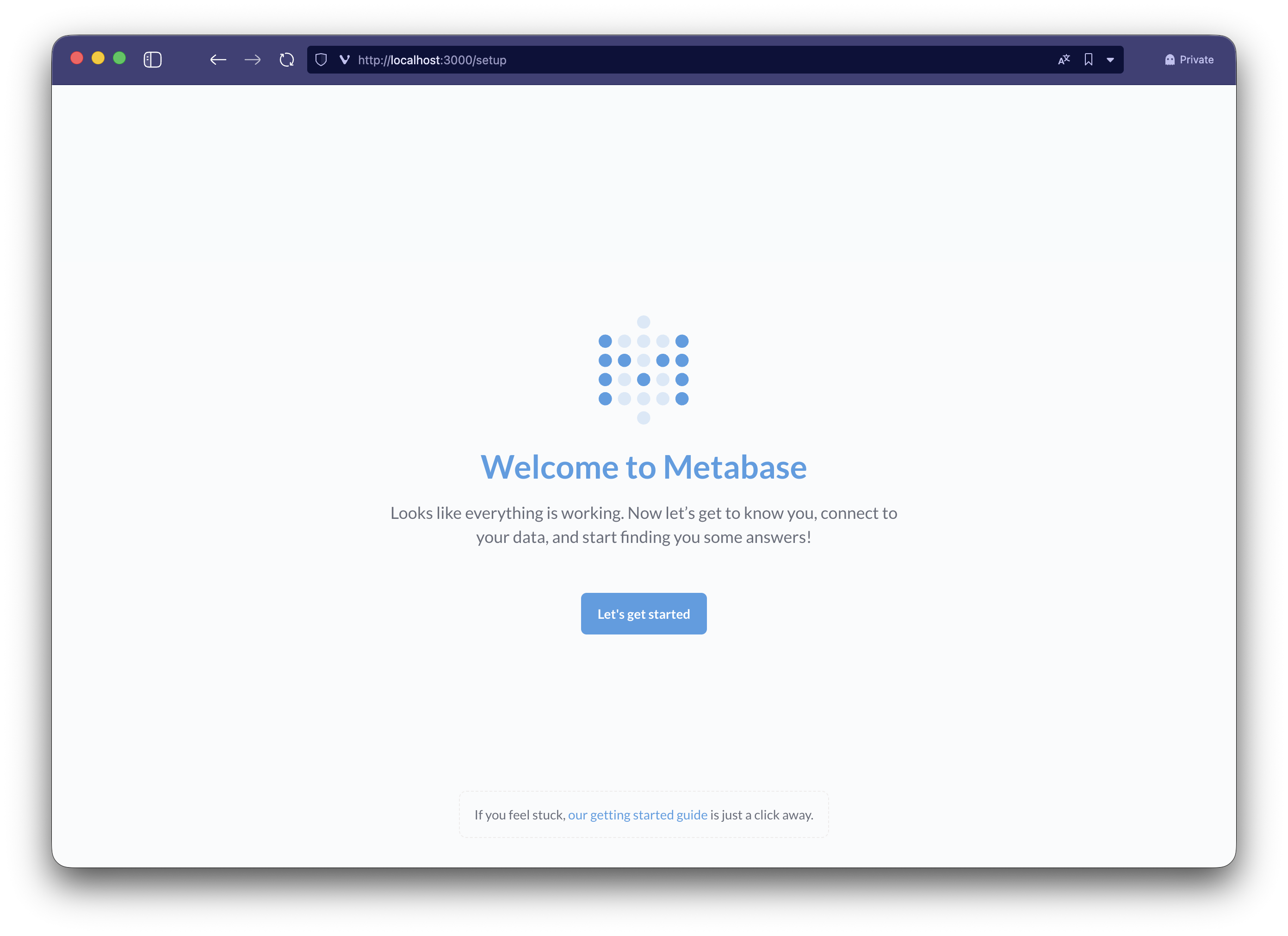
Complete the initial wizard by creating the (local) user associated with your temporary Metabase instance. Depending on the version in use, the welcome wizard may ask you to configure the connection directly.
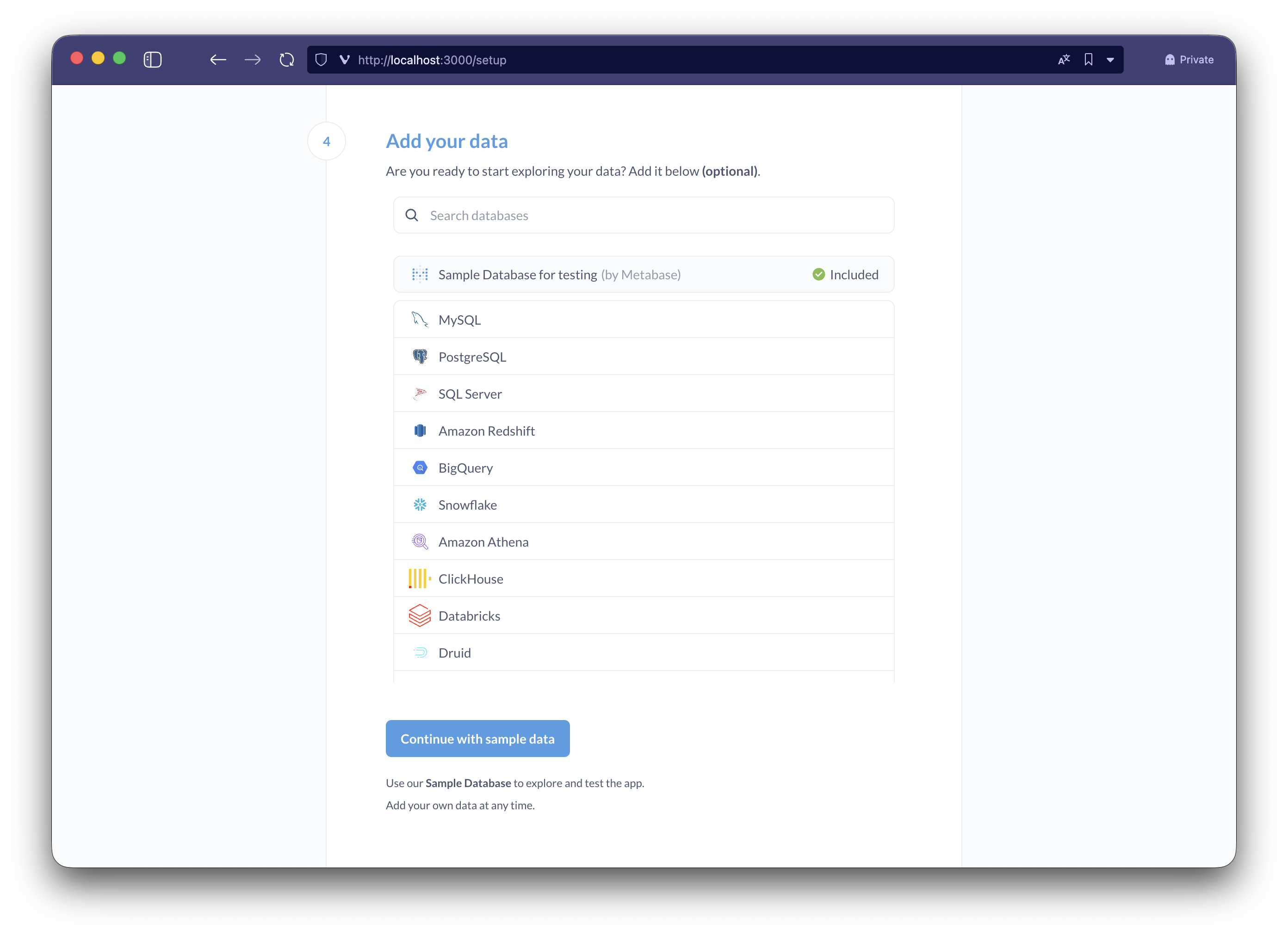
Click on PostgreSQL and fill in the following fields
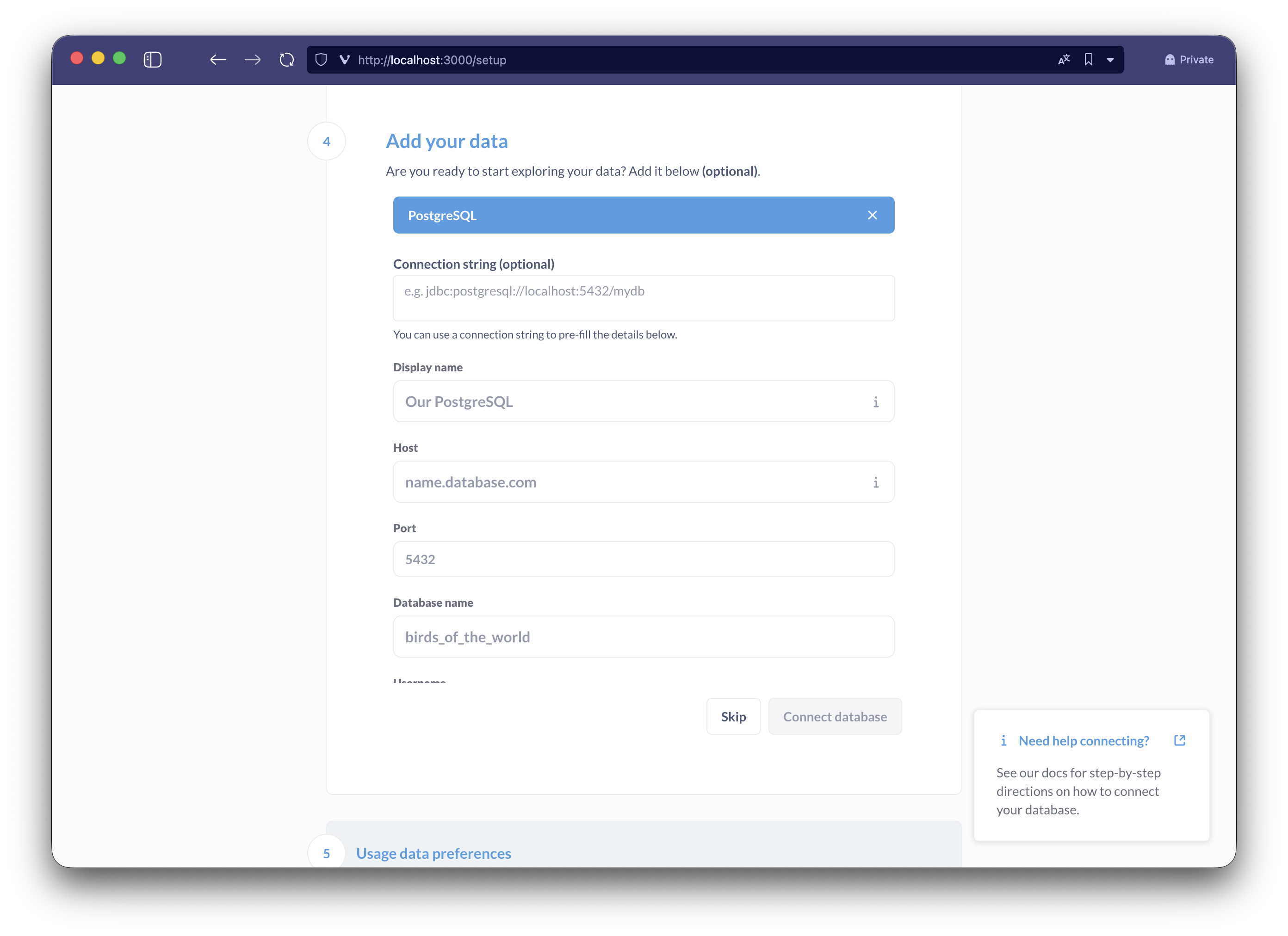
- Display name:
BauplanLabs(you can change this) - Hostname: the hostname of your Bauplan server
- Port: the port assigned by your server to the proxy
- Database name: the ref or branch name you want to connect to (for example,
main) - Username: your username
- Password: your API Key
- Use a secure connection (SSL): enable
- SSL Mode:
require
- SSL Mode:
- Expand
Show advanced options:- Additional JDBC connection string options:
preferQueryMode=simple
- Additional JDBC connection string options:
- Click on
Connect databaseto test the integration
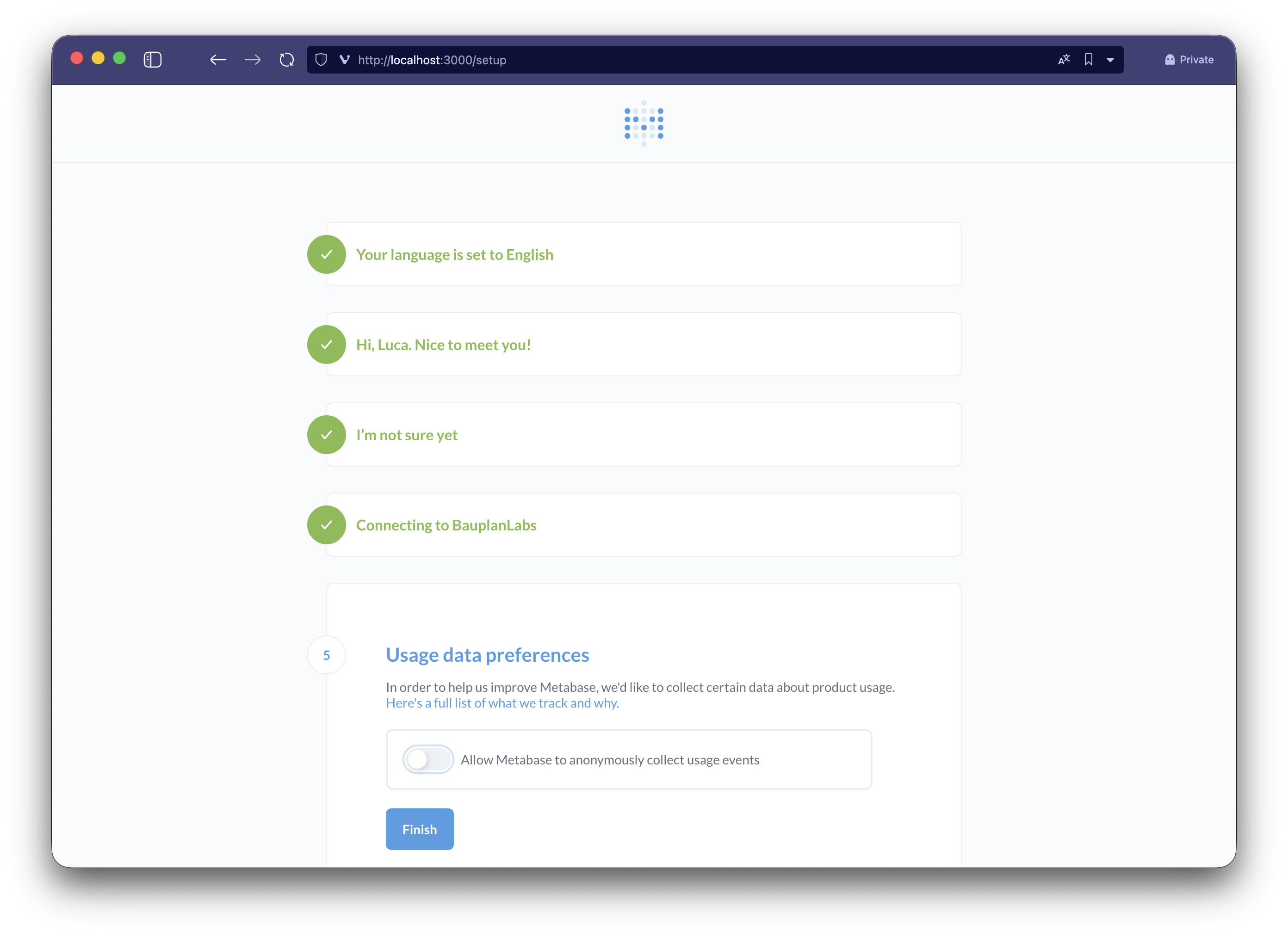
Once setup is complete, press Finish to access Metabase with your newly created user.
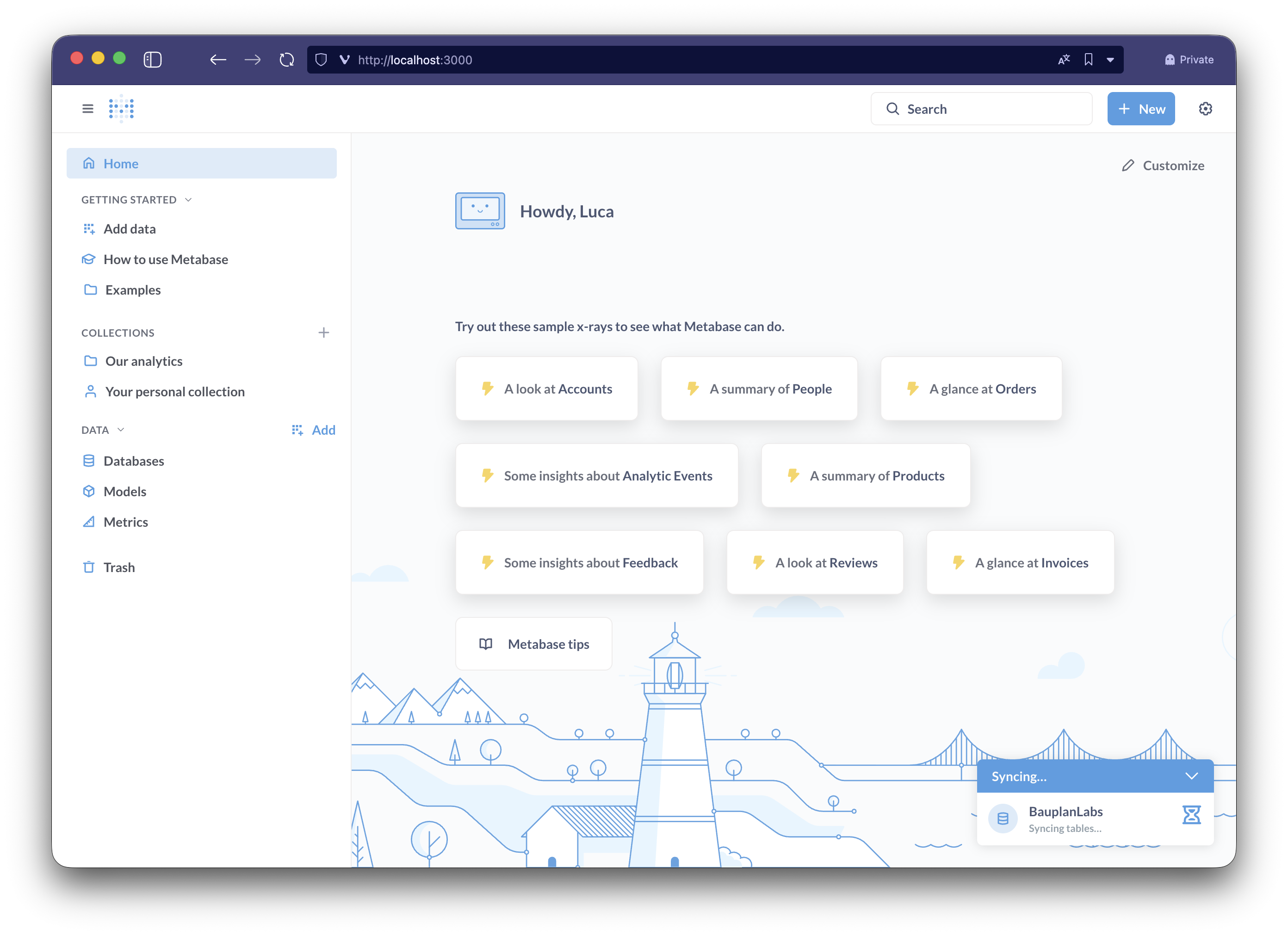
On first login, Metabase will begin synchronizing and indexing the list of tables and columns from your data lake; this operation may take a few minutes depending on the number of tables in your instance.
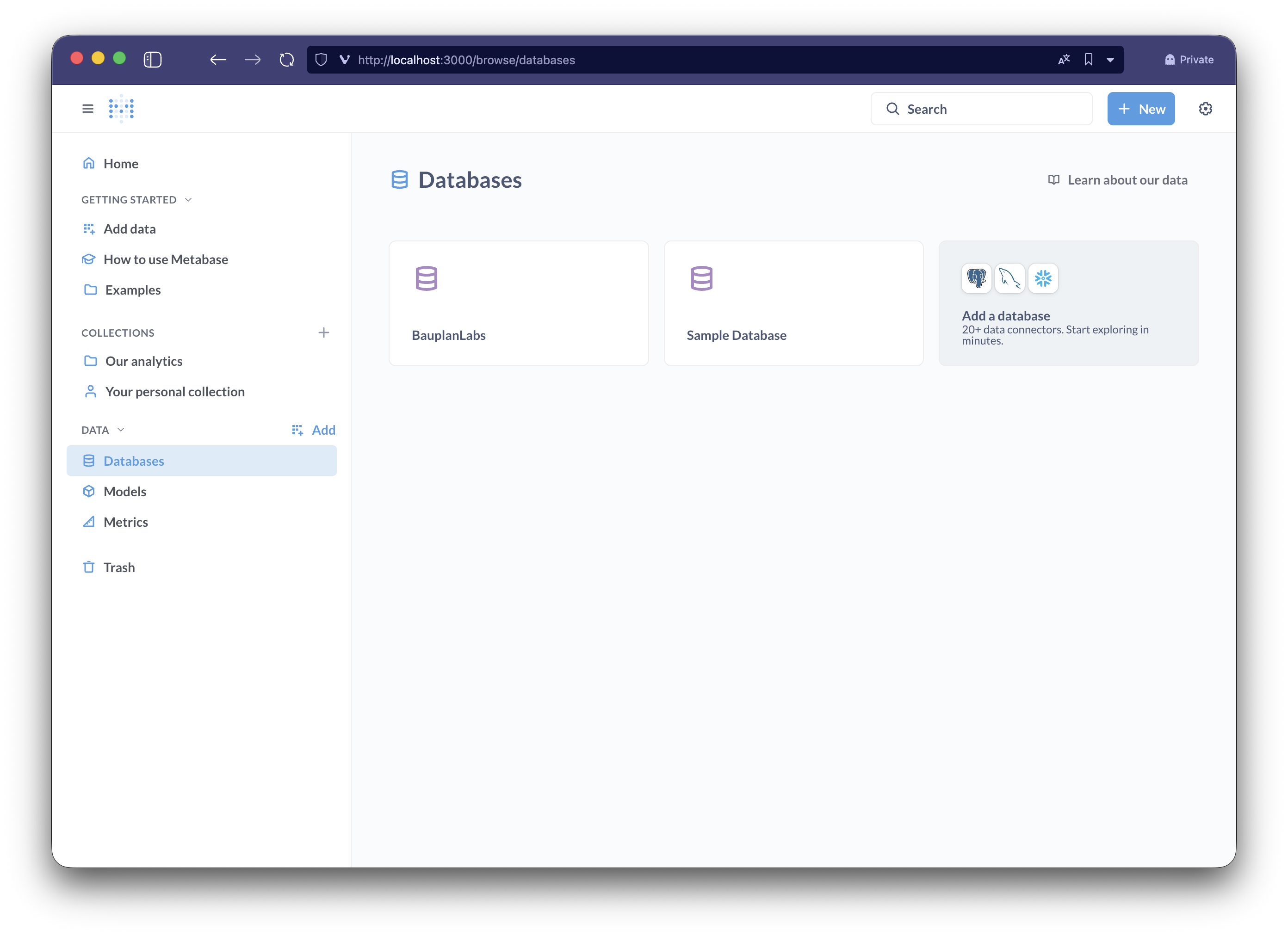
Once synchronization is complete, you can view the list of tables by clicking from the side menu on Data > Databases > BauplanLabs.
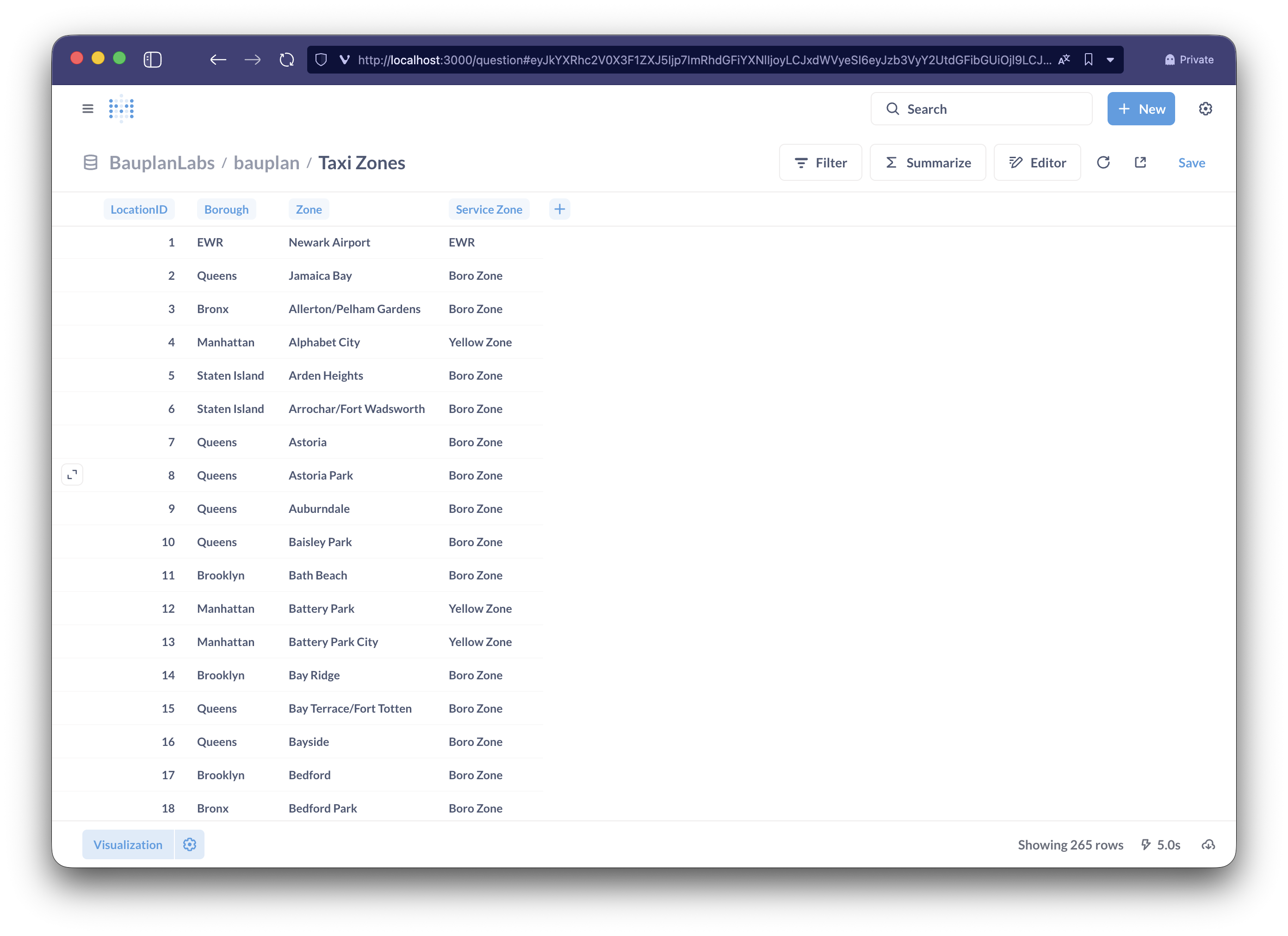
Let's click a table (Taxi Zones) to view its content, confirming that the setup was successful.
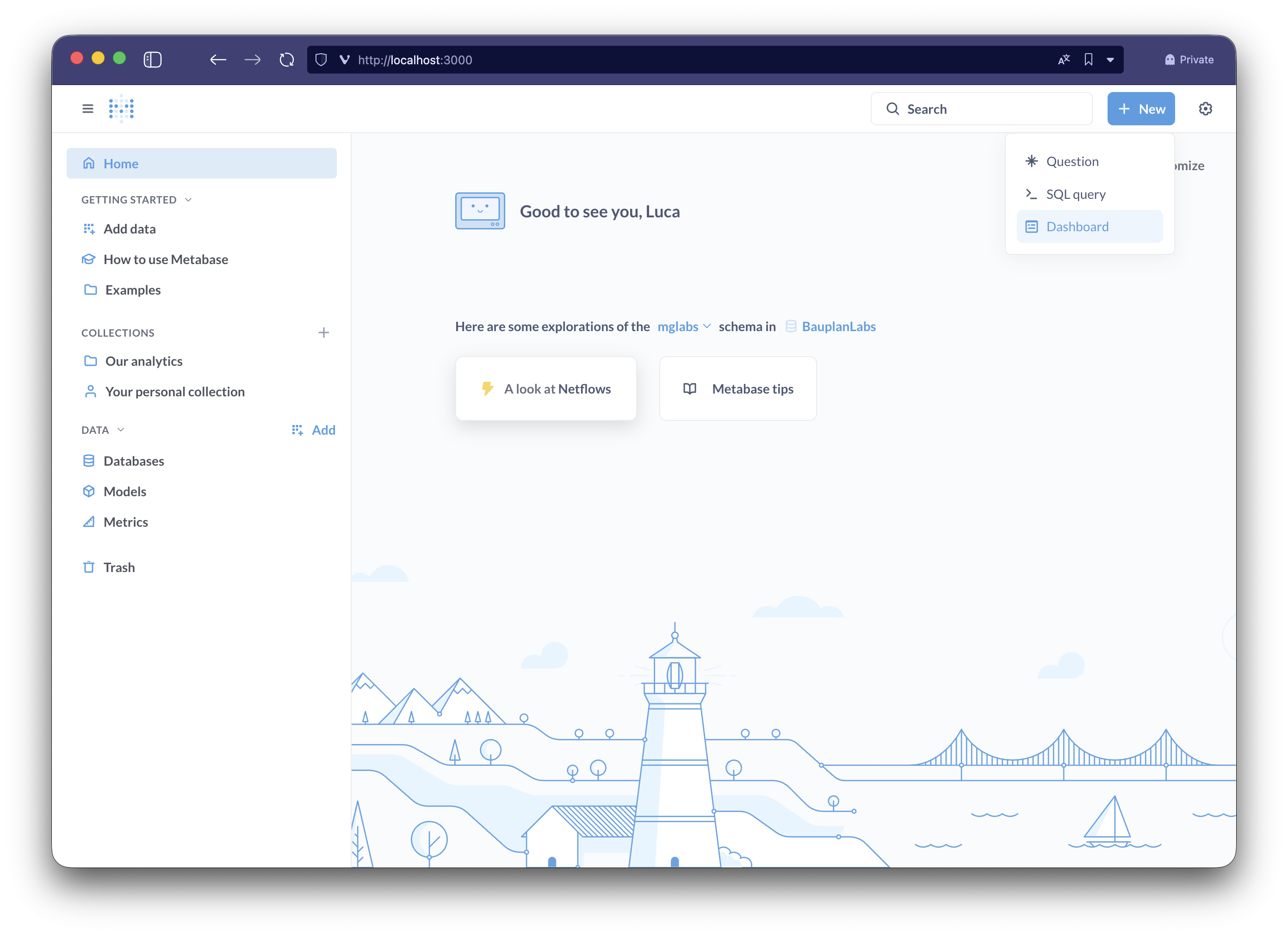
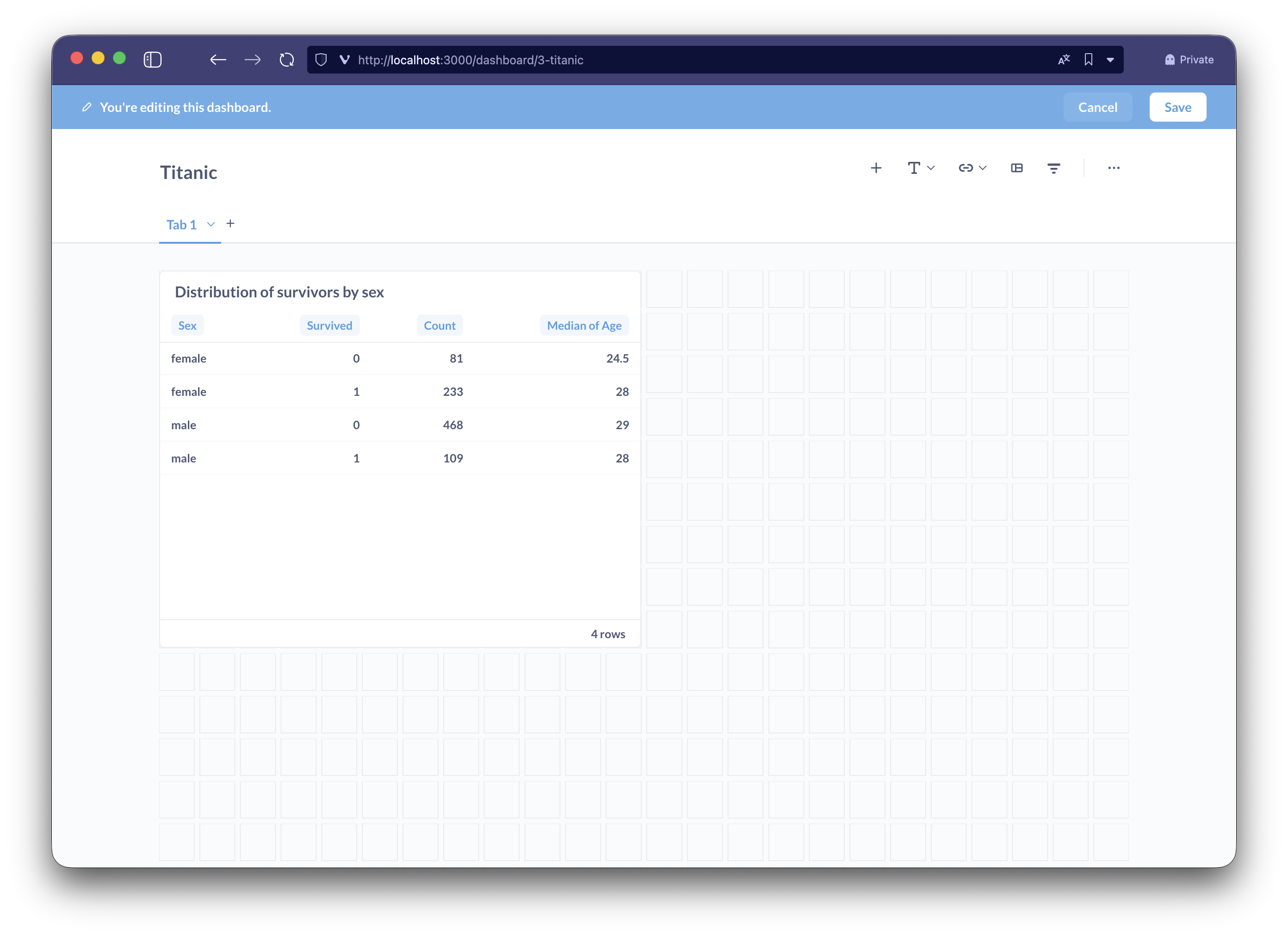
Now let's try building a simple dashboard with Metabase using the Titanic dataset; for simplicity, we'll skip configuring or defining custom Models and Metrics as they're out of scope for the integration.
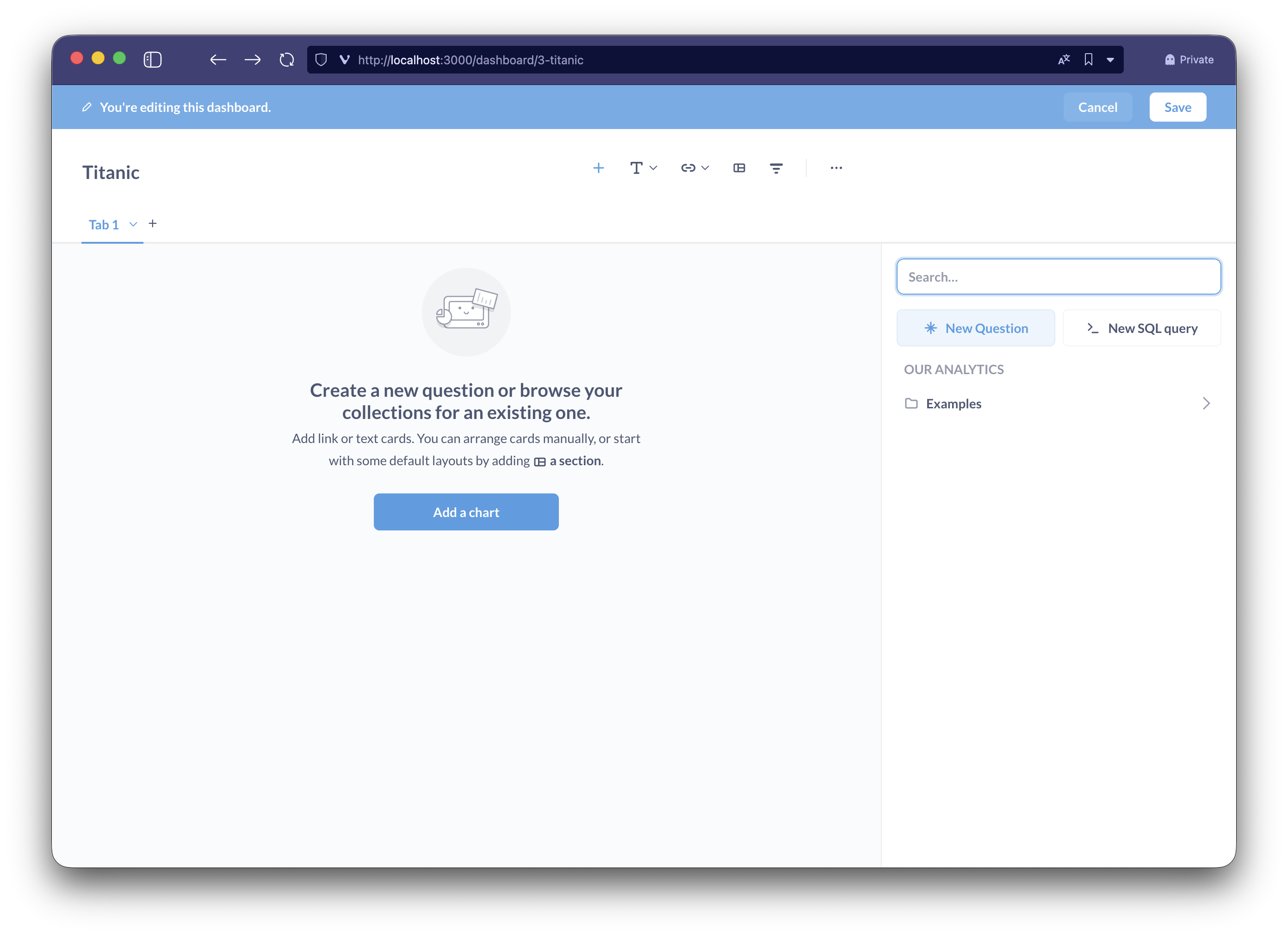
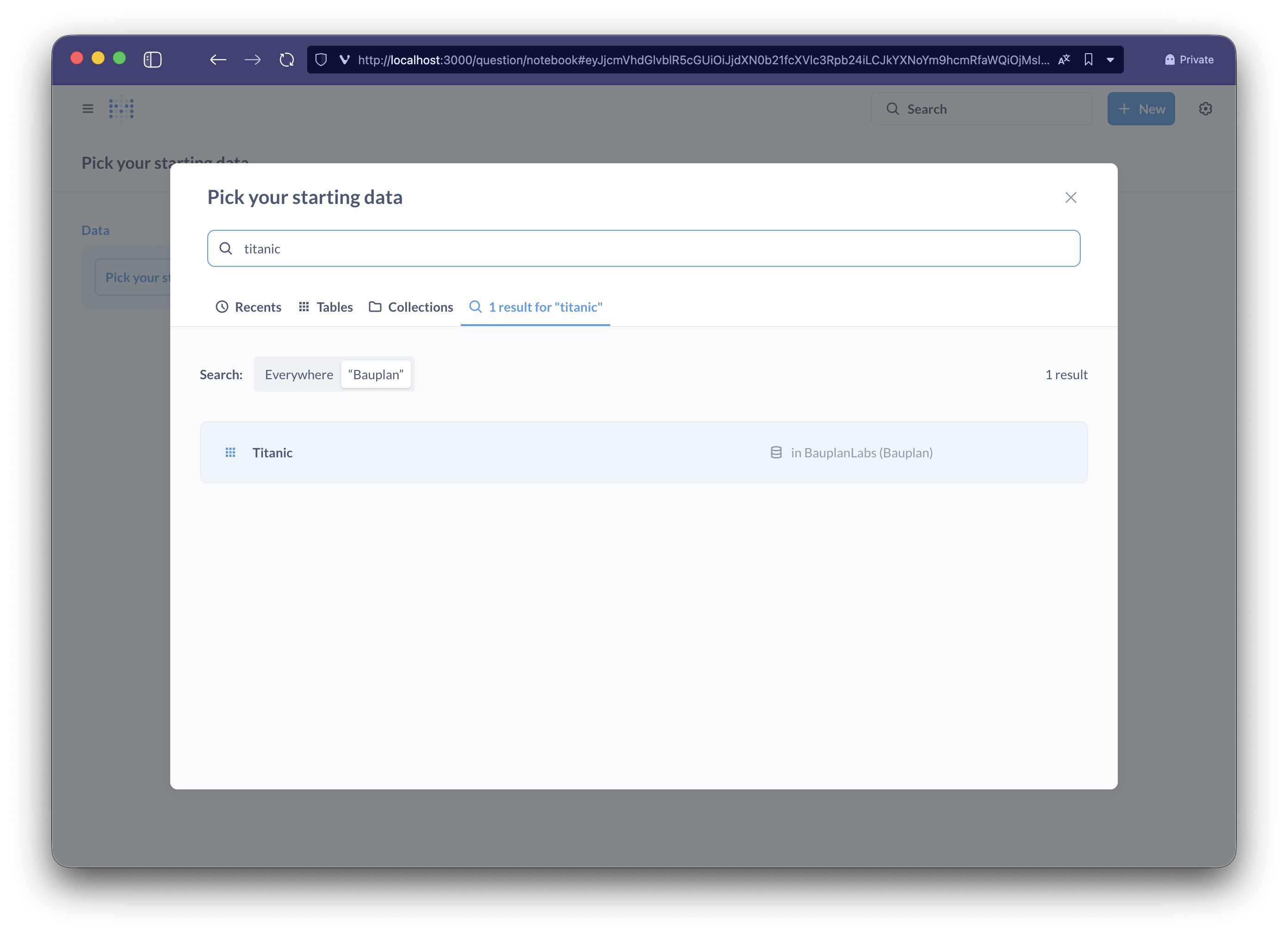
Click on Add a chart and then on New Question to create a new widget in guided mode; search for and select Titanic from the list of tables, and create a first model with some basic information by gender.
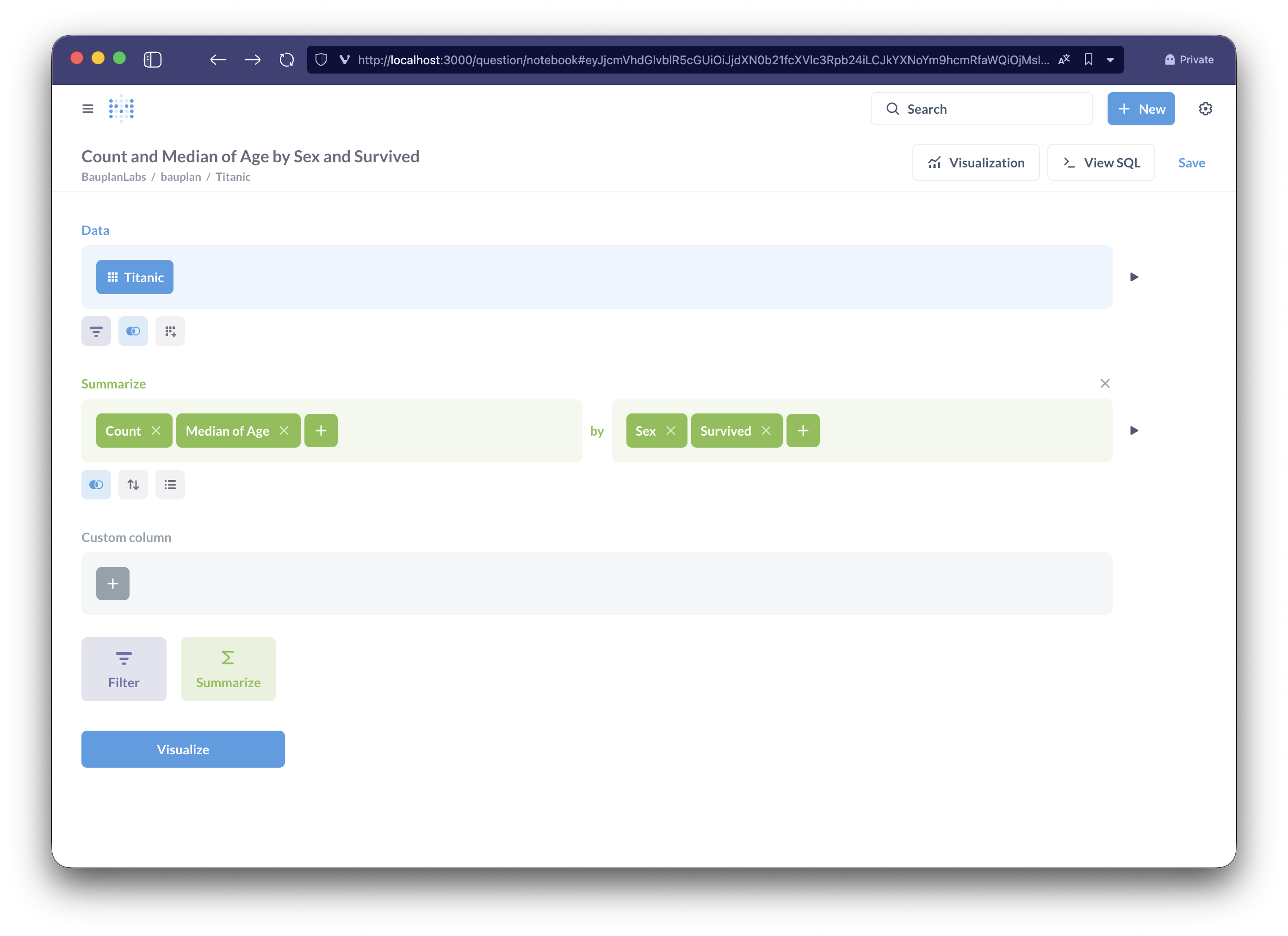
Click on visualize to confirm the correctness of the filters just created, and press Save to add the new question to our dashboard.
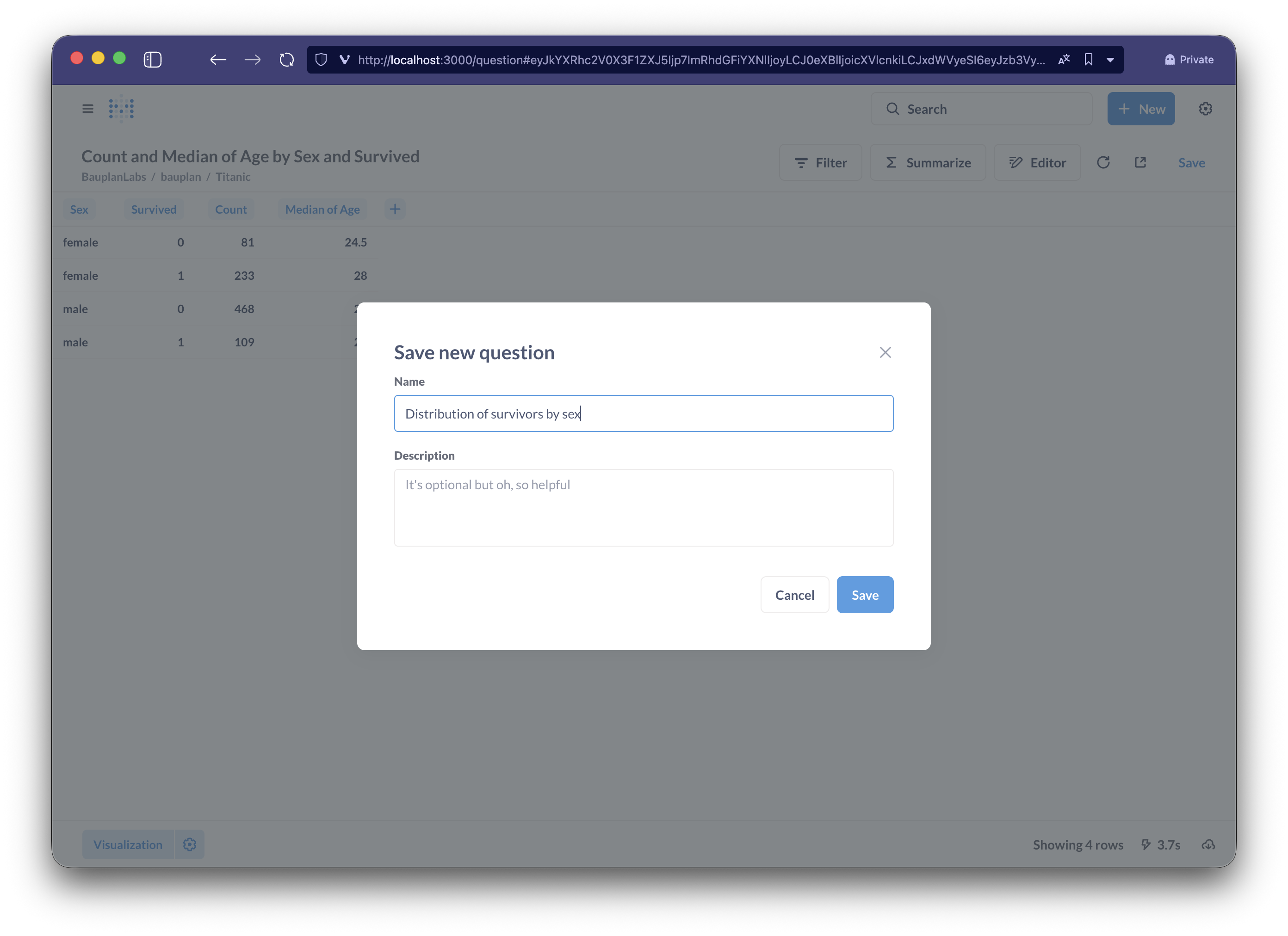
Our dashboard is ready, we can now save it and access it directly from the Our analytics -> Titanic section.
Advanced configurations
The Bauplan connection configuration is available in the Admin settings -> Databases section accessible from the cog icon in the upper right of Metabase.
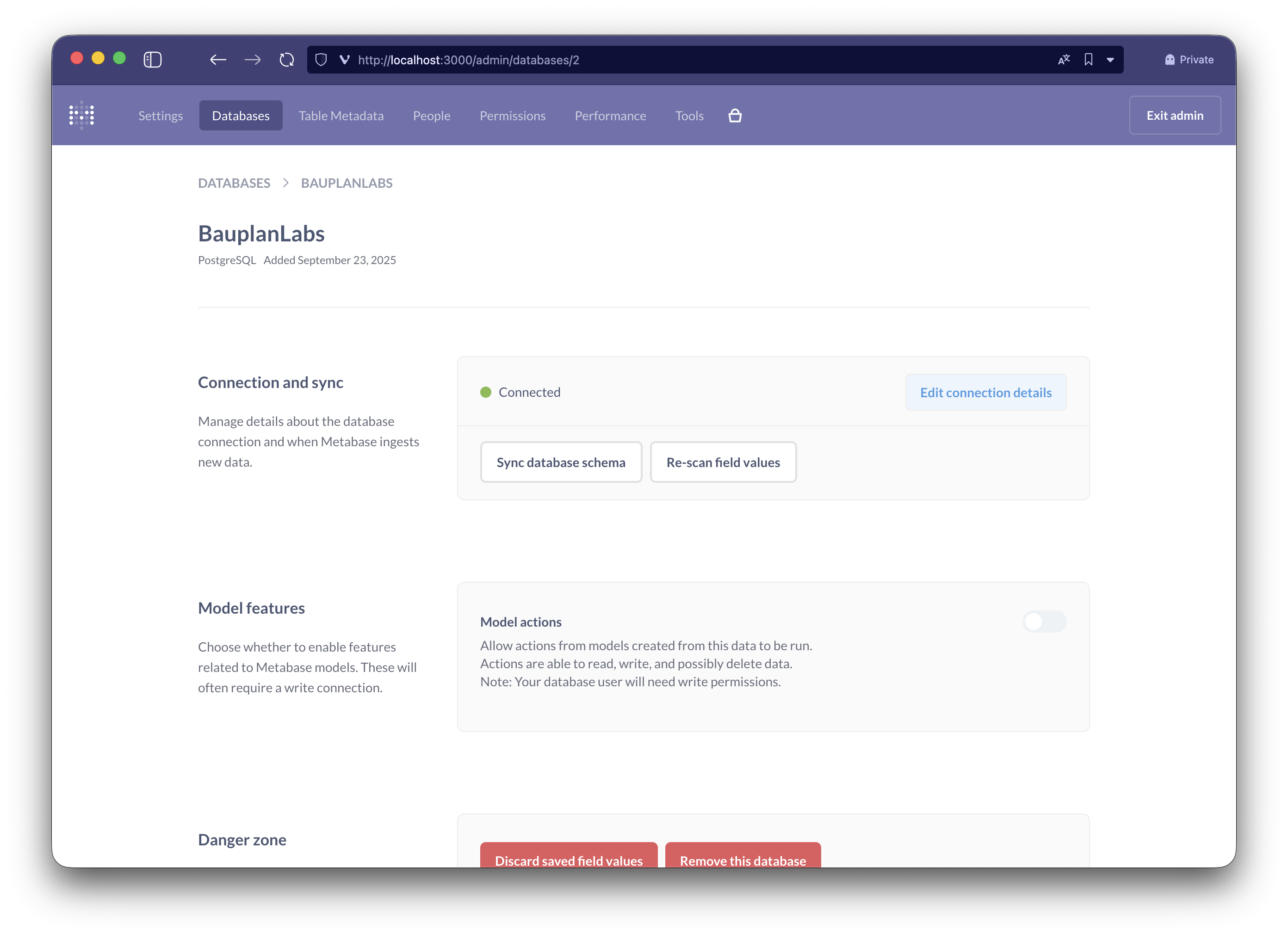
You can configure Metabase to periodically update the list of new tables or fields (Edit connection details -> Periodically refingerprint tables) or manually trigger a new synchronization Sync database schema.
Model actions is not supported by the Proxy, as the lakehouse connection is accessible in Read Only mode.